
Open your browser’s Downloads list and check the file’s status before tapping Download again. A paused transfer, a completed file and an installer error are three different stages. Note the message, check your connection and available storage, then make one controlled retry if needed.
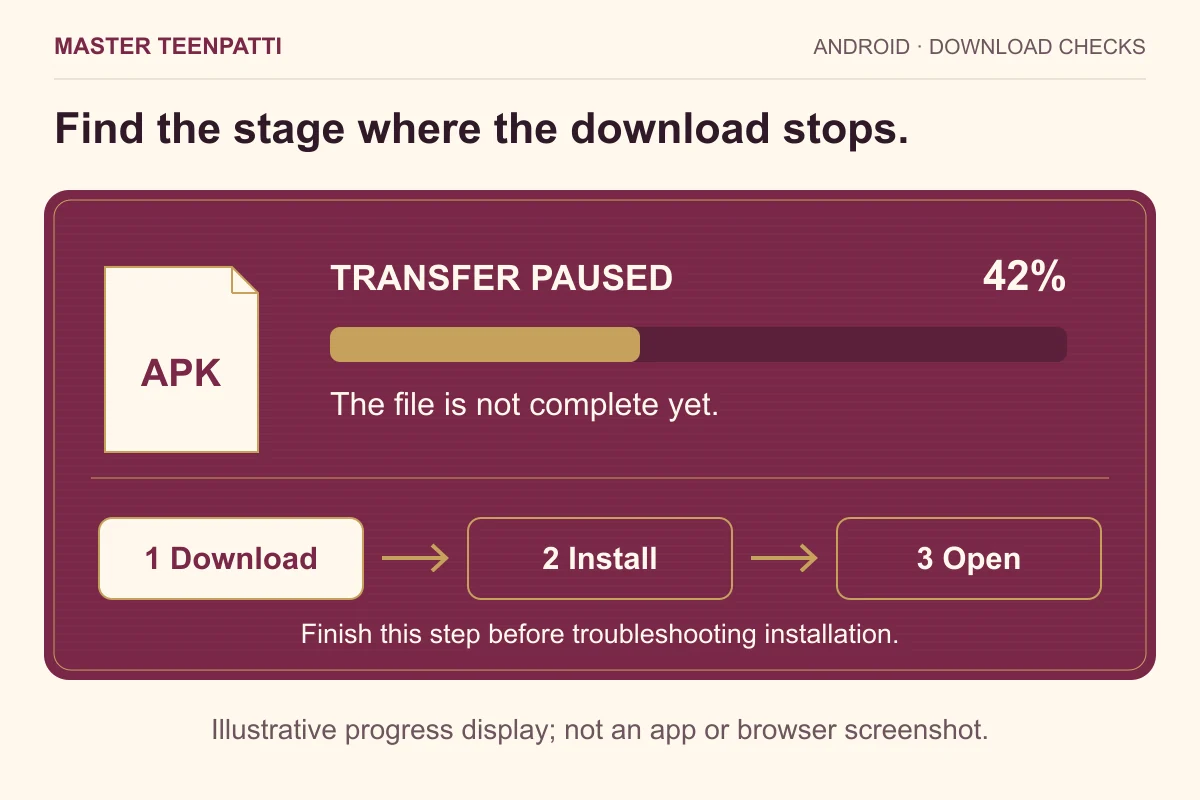
Is it downloading, installing, or opening?
A download button starts the transfer of a file. Android’s installer comes later, when you open that completed file. The installed app opens after installation. Treat these as three separate checkpoints: a setting that affects installation will not repair bytes that never arrived.
For example, a progress bar stopped at 42% belongs to the download stage. A completed APK followed by “App not installed” belongs to installation. An app icon that opens and immediately closes is later still. Write down which screen you see, rather than describing all three as “the download is not working”.
If you already reached the installer, use the installation-error guide. If you are replacing an existing installation, keep its data intact while checking the APK update checklist. Neither problem calls for repeatedly starting a new download.
Find the existing transfer before starting another
In Chrome on Android, open the menu and choose Downloads. Google also documents a Downloads entry when using the bottom address bar. Menu placement can vary, so look for the list of files rather than relying on a picture of someone else’s phone.
Look for the filename, whether the transfer is active or paused, and whether its received size changes. Take two readings a short time apart. A changing byte count is stronger evidence of progress than a frozen animation. Keep the browser open while making this check so you can see any new message.
If several similarly named entries appear, note their times before deleting anything. Keep a completed copy until you have identified it. Cancel redundant unfinished transfers from the download list; do not rename a partial file to make it look complete. The file extension is a label, not a repair tool.
Swipe sideways to see all columns →
| What you see | What to check next | What it does not prove |
|---|---|---|
| Progress remains below 100% | Connection, transfer status and storage | That the APK is incompatible |
| 100% but still processing | Wait for a completed entry; record any warning | That installation succeeded |
| Completed file; installer rejects it | Use the installation-error guide | That a faster network will fix it |
| File missing or access denied | Record the link and message; contact the site | That the phone needs a reset |
| App opens, then closes | Record the app error separately | That the download is still running |
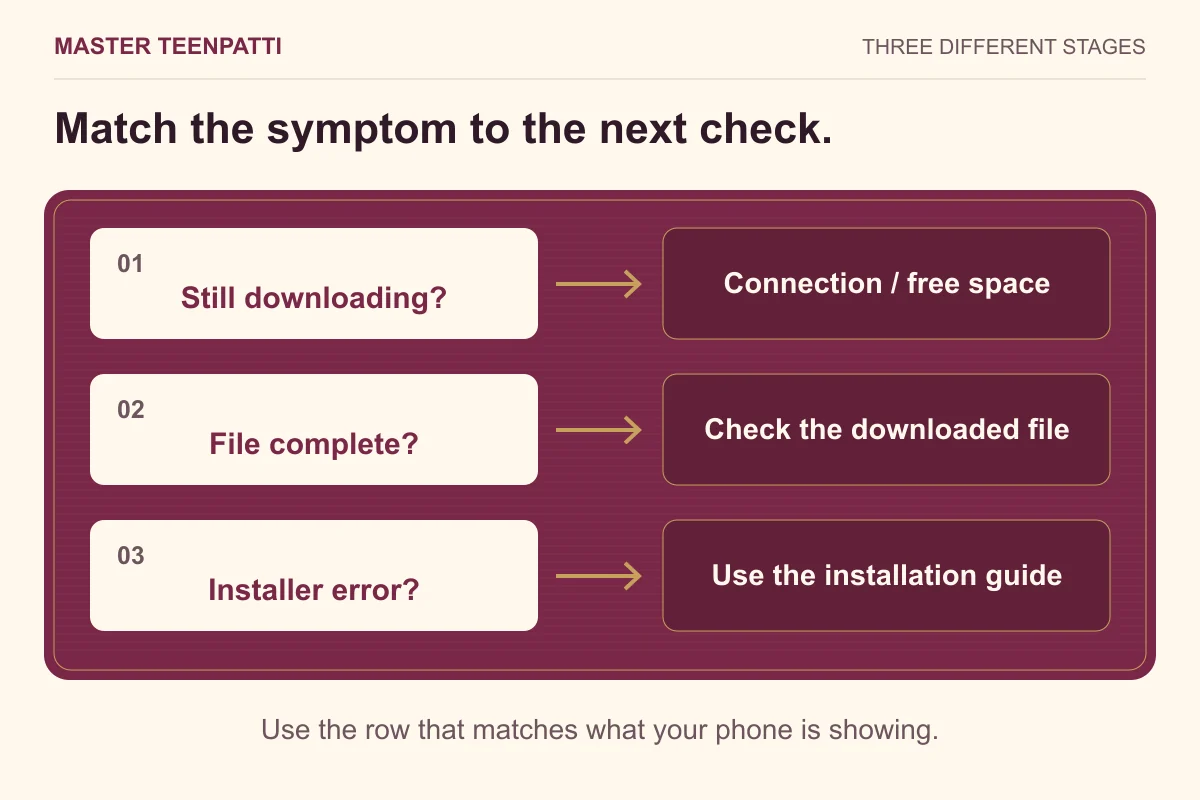
Make one useful connection check
Open a small, familiar web page in the same browser. If that also fails, deal with the connection before restarting the APK transfer. A Wi-Fi symbol only tells you that the phone joined a network; it does not, by itself, show that the file’s server is reachable.
If you choose to switch from Wi-Fi to mobile data, check your data allowance first. Note which connection failed and which one you used for the retry. That gives support a useful comparison. Changing networks, browser settings and download sources all at once makes it hard to know which change mattered.
A transfer that stops at roughly the same point on repeated attempts deserves an error record, not endless retries. Google’s general download guidance recommends checking the connection, retrying later or contacting the website. An access-denied or missing-file message may need action at the source. Changing an Android install permission cannot grant access to a server.
Check storage without clearing your app data
Open Android Settings and look for Storage. You need space for the downloaded file; installing an app also uses storage beyond the downloaded archive. There is no universal spare-space number that guarantees success for every phone. Record the available space and compare it with the file size you are trying to receive.
When freeing space, start with files you recognise and no longer need. Confirm important photos or documents are backed up before removing local copies. Avoid clearing the game’s storage or uninstalling it merely because a browser transfer paused: those actions can affect existing local data and do not diagnose the transfer.
Google distinguishes temporary cache from app storage, which can contain data you want to keep. If a phone’s menu wording is unclear, stop before confirming a deletion. A screenshot of the storage summary is enough for an initial support note; private photos and account details are not needed.
At 100%, wait for completion and check the file
A progress number is only one signal. Wait until the browser records the transfer as completed and look for any warning that follows. If the browser reports a security issue, read it rather than turning protection off to make the download proceed. Do not substitute a random mirror because its button is easier to press.
The Master TeenPatti download page links the file offered by this site. Our inspection record describes the copy checked on 13 October 2026, including its exact byte count. That historical record is not a new live test of your download or a guarantee about a different file.
For a file intended to match that record, use the APK file-check walkthrough. A different byte count means it is not byte-identical. Matching size alone is not enough to establish identity, and neither a filename nor a completed progress bar establishes app safety.
Send a small, specific support note
If one controlled retry fails, save the exact message and stop changing settings. A useful note includes the page you used, approximate time and timezone, browser name, Android version, connection type, visible filename and the stage where progress stopped. Add whether an ordinary web page loaded on the same connection.
An example would be: “Chrome on Android; Wi-Fi; transfer paused below 100%; ordinary pages still load; same result on one retry.” This is more actionable than “APK broken”. Include a screenshot of the message after hiding account identifiers, notifications and any personal information.
Use the website contact page for a broken link or a correction to these instructions. Do not send passwords, one-time codes or payment information. Keep the failed file only if you need to compare it; once the issue is understood, remove redundant partial copies so the next attempt is easy to identify.
Questions readers ask
Should I enable “Install unknown apps” to fix a stuck download?
That control relates to installing an APK from a source. It does not finish an incomplete network transfer. First confirm that the browser has a complete file, then follow the separate installation instructions.
Does 100% mean the app is installed?
No. It can describe the file transfer. Completion, file checks, installation and opening the app are separate steps. Read the status shown by the browser and then by Android.
Should I keep tapping Download until it works?
Check the Downloads list first. Repeated taps can leave multiple entries and make diagnosis harder. Record the status, correct an identifiable connection or storage problem, and make one controlled retry.
Sources & scope
Android and Chrome troubleshooting guidance with an original stage-by-stage worksheet. Device labels vary. Illustrations are diagrams, not screenshots from a tested phone. No new APK installation or runtime safety test was performed for this article.
APK file details · Editorial policy
About the author

Android App & APK Research Editor
Android package identity, APK filenames and hashes, versions, download sources, permissions, Play Protect and installation troubleshooting.
Author profile and guides · Public editorial profile at Play TP Master
For sources, revisions and corrections, see our editorial policy. To flag an error, email [email protected] with this page’s URL, the passage and a supporting source.