
Check that the APK is a supported update for your installed app before replacing anything. A familiar name or a different filename is not enough: package identity, signing compatibility and version rules determine whether Android can apply an update.
A renamed download is not an update history
Consider two files both labelled version 1.0. If their full hashes match, they are the same recorded contents even if one filename contains a different number. If the hashes differ, you have different contents—but that still does not tell you which is newer or whether either can update your installed app.
The file linked here was recorded with versionCode 1. The website has not established a version-code history or signing relationship with the app on your phone. Keep your existing installation while checking the operator’s supported update route. Open the dated file record →
Keep the current app until you know the update path
Start in the installed app’s information or About screen. Note the version, how you sign in and the operator’s support details. Do not clear storage or uninstall as the first response to an update error. First find out how your account or any device-only progress can be recovered.
For this site’s download, open the APK details page and the inspection record. The record identifies the inspected file; its inspection date is not the app’s release date. This guide does not establish that it is newer than the version on your phone.
Three checks that a filename cannot replace
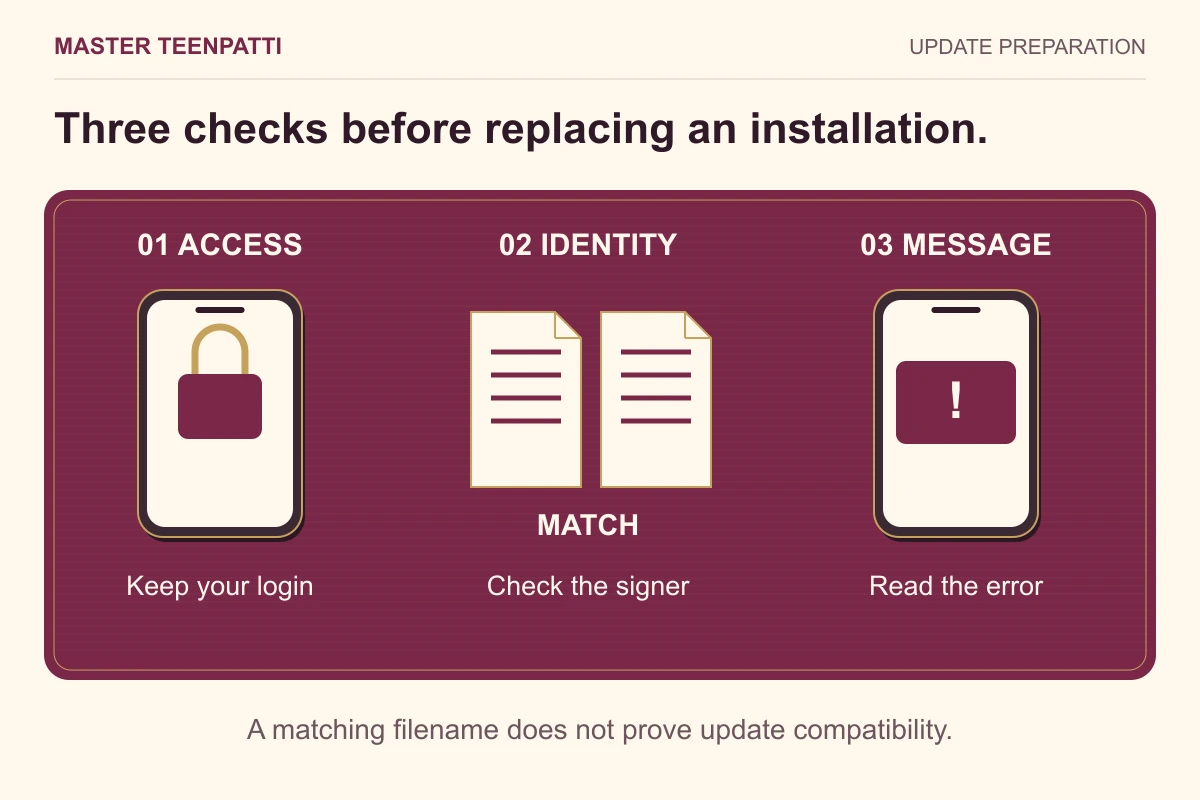
A displayed version name such as “1.0” is a label. It is not the same thing as Android’s internal version code. Likewise, changing an APK’s filename does not change its package or certificate. If the installer treats the file as a separate app, pause and confirm the identity instead of assuming your account will move.
Our file record includes package and version metadata. It does not claim a verified signing relationship with an APK already installed on your phone. That missing comparison matters when deciding whether an in-place update is possible.
Swipe sideways to see all columns →
| Check | Why it matters | Where to look |
|---|---|---|
| Application/package ID | Different IDs identify different apps | APK inspection record and operator information |
| Signing identity | Android requires a compatible signing identity for an update | Publisher’s release information; a verified certificate check |
| Version code | Android uses this internal number for version ordering | APK manifest or reliable release record |
Check the downloaded file before opening it
A matching checksum confirms that the file matches the recorded bytes. It does not prove the app is safe, compatible with the current installation or supplied by the same signer. These are different questions with different evidence.
- Use the current download page so you can read the accompanying file record.
- Wait for the download to finish. If it stops, resolve the connection or storage problem before opening the file.
- Compare its size and complete SHA-256 with the record using the APK file-check guide.
- Read any Android or Play Protect message. Keep Play Protect enabled; do not bypass a harmful-app warning to force an update.
Two downloads both say version 1.0—now what?
The displayed version is not enough to decide which copy should replace an installed app. Two files can use the same version name and still differ. If their full hashes match, they contain the same bytes; a later download date does not make one a new release.
If their hashes differ, that alone does not prove that one is newer. Compare the package and internal version metadata, and obtain the publisher’s supported update path and signing information. The current site record identifies one inspected file; it is not a version archive or a guarantee of account migration.
Update, re-download or reinstall?
Swipe sideways to see all columns →
| Action | What changes | When it answers the problem |
|---|---|---|
| Re-download | Fetch another copy of the file | When the transfer was incomplete or the copy differs from its record. |
| Update in place | Apply a compatible package over the installed app | When the publisher confirms the update path and Android accepts it. |
| Reinstall | Remove an app and install again | Only after establishing why it is needed and how account access and local data can be recovered. |
What to do with the identity comparison
Same full hash as the recorded file: you have that same APK, not evidence of a newer release. Different package: do not assume it can replace the installed app. Same package but unknown signing compatibility: do not remove the current app just to get past an installation refusal.
Version code orders releases within an app’s update path; a higher code alone does not prove publisher identity. Ask the operator for the supported replacement and recovery path when those facts are missing. Keep the current app until the consequences are clear.
If Android refuses the update
Keep the exact error text. “App not installed” is not a diagnosis of a single cause. Record the phone model, Android version, current app version and the downloaded file’s details. The installation troubleshooting guide separates incomplete downloads, device checks and compatibility issues.
If the problem is an identity or signing mismatch, downloading the same file repeatedly does not change those properties. Ask the operator for the correct update path. Do not send passwords, OTPs or recovery codes with a support request.
After a successful, intended update, open the app and check the displayed version and your normal sign-in. If account information is missing, use verified operator support before clearing data or making another account. The website cannot verify account migration or recover an app wallet.
If the updated app asks for new access, match the request to the feature using the post-update permission checks. If installation itself stops, follow the exact message in the installation troubleshooting guide.
Questions readers ask
Will updating keep my account and progress?
That cannot be guaranteed from an APK filename or file inspection. Confirm the operator’s account and recovery process before changing the installed app.
Does a newer-looking filename prove it is the latest version?
No. Check a reliable release record and the APK’s version metadata. The date shown on our inspection record describes our file check.
Should I uninstall if Android says the update is incompatible?
Do not make that the first step. Preserve access, record the message and confirm the correct app identity and recovery procedure with the operator.
Master TeenPatti · Practical guides
Separate file identity from update compatibility
First check whether your downloaded file matches the recorded sample. Then continue the package, signature and version-code checks above. A matching hash answers the first question only; it cannot make a different app’s update compatible.
Check the downloaded file →Sources & scope
This is a pre-update checklist, based on Android documentation and this site’s existing file inspection. We have not installed the APK or tested an upgrade, login recovery or signing compatibility with your current app. Sources consulted 15 October 2026.
APK file details · Editorial policy
About the author
Android Help Desk · Master TeenPatti
This collection covers incomplete downloads, storage checks, installation errors, update precautions and SHA-256 comparisons. It keeps file inspection separate from app security or ownership claims.
This guide is credited to the publication desk. See our source and correction policy. To report a rule or example that needs correcting, email [email protected] with this page’s URL and the relevant passage.