
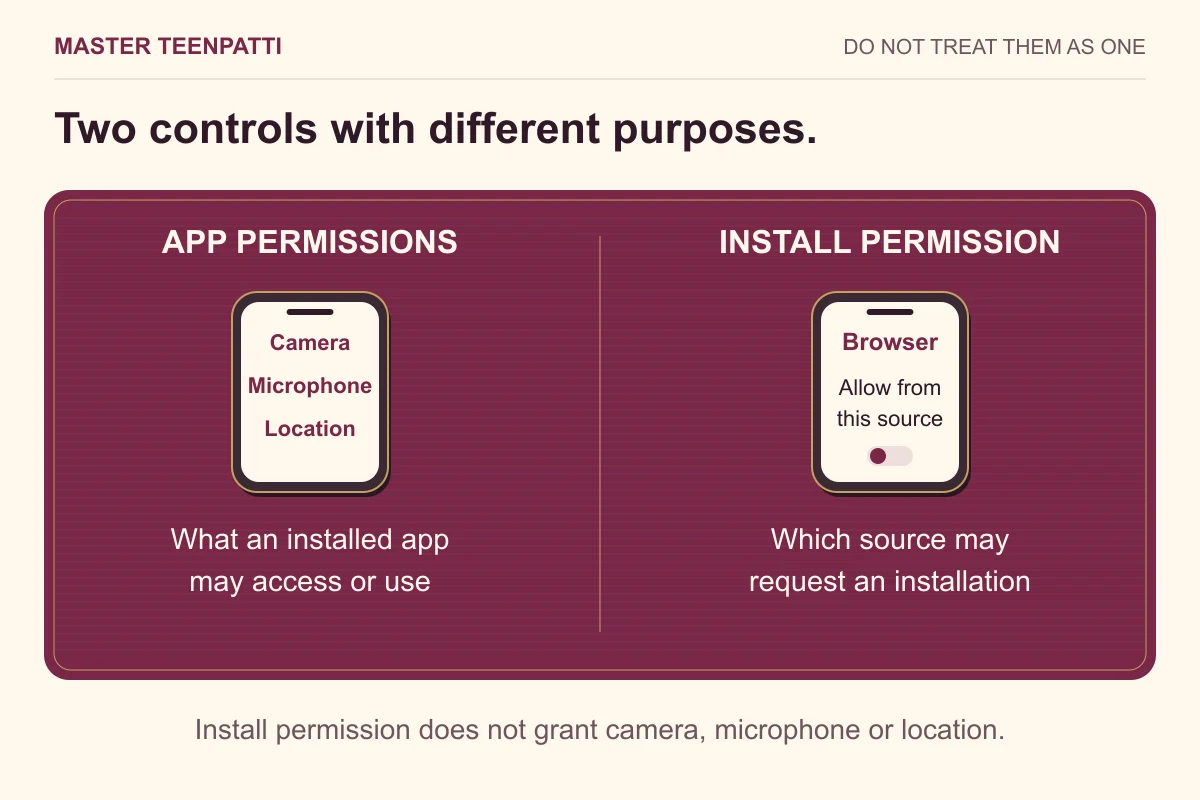
Match each permission request to the action you just chose. Permission to let a browser install an APK is different from permission for the installed app to use your camera or microphone. You can review app permissions in Android settings; menu names and available choices vary by phone and Android version.
Installation access and app permissions are separate
When you open an APK downloaded through a browser, Android may ask whether that browser is allowed to install unknown apps. This is access for the source that starts installation. It does not mean the new app has permission to read contacts, record audio or use the camera. The installation screen and a later permission prompt answer different questions.
After installation, an app may request access when you use a feature. Do not treat accepting an installation as a reason to accept every later request. For the installation steps, see the APK download guide. If Android stops with an error rather than a permission question, use the App not installed checklist instead of repeatedly changing unrelated settings.
Connect the request to a visible task
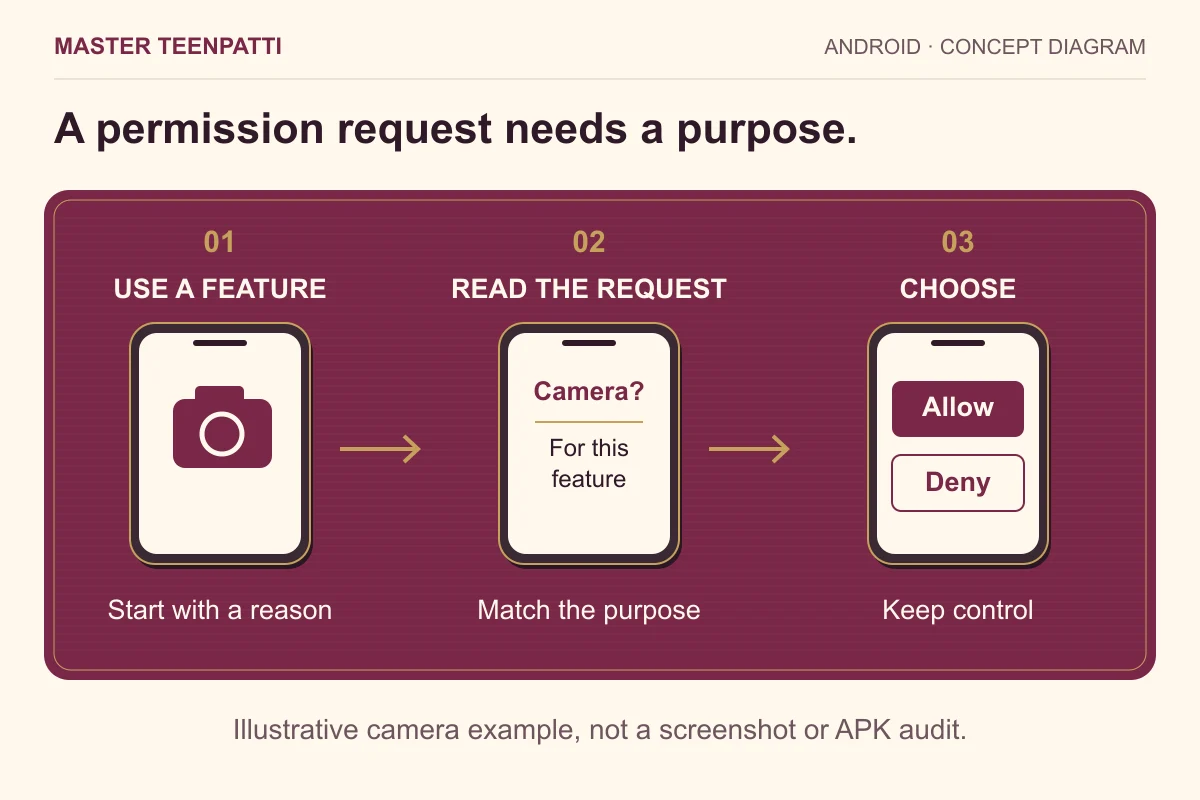
A useful check has three parts: what you tapped, what the app says it needs, and what Android is asking to allow. These should fit together. For example, choosing to take a profile photo can explain a camera request. Opening a basic information page does not, by itself, explain a request for your contacts.
The examples below are general Android scenarios. They are not a record of permissions requested by Master TeenPatti or proof that any listed feature exists in its APK.
Swipe sideways to see all columns →
| Action you chose | Possible request | Question to ask |
|---|---|---|
| Take a new photo | Camera | Did I choose a camera action, and can I cancel? |
| Start a voice feature | Microphone | Is audio needed now, or can I use a text option? |
| Use a location-based feature | Location | Does this feature need my location and the precision requested? |
| Open a rules page | Contacts | What visible function explains access to my address book? |
| Receive reminders | Notifications, on supported Android versions | Do I want these alerts, and can I change the choice later? |
Read the choice, not just the button colour
Depending on the permission and Android version, choices may include allowing access while using the app, asking each time, or not allowing it. Not every permission offers every choice. Location may also have separate precision options. Read the exact prompt on your phone rather than following a screenshot from a different Android release.
When the purpose is unclear, cancel the action or deny the request while you check. A feature that needs that permission may not work; that is different from the entire phone becoming unusable. If a feature fails afterwards, record what you denied and what stopped working before changing anything else. This makes the next decision specific rather than granting everything at once.
Review permissions for one app
Google’s general path is Settings → Apps → choose the app → Permissions. Manufacturers can rename or move these menus; use Settings search for the app name or “permissions” if the path is different. Select a listed permission to inspect or change the available choice. Check that you opened the intended installed app, especially if several apps have similar names.
Some Android versions also let you inspect access by permission type in Permission manager. That is useful when your question is “Which apps can use the microphone?” rather than “What can this one app use?” A normal permission list is not an exhaustive security assessment: special access and ordinary runtime permissions are not all shown or controlled in the same place.
- Open the installed app’s information screen and confirm its identity.
- Read the allowed and denied permissions; do not change several together.
- Change the permission relevant to your question.
- Return to the specific feature and observe what changed.
- Keep the result in a short private note if you need help later.
A short record makes troubleshooting clearer
Write four lines: the action you took, the exact permission wording, your selected choice and what happened next. For example: “Opened profile photo → camera request → did not allow → camera view did not open.” This describes an observation without assuming the app is broken. Do not include passwords, OTPs, identity documents or private contact lists in a support screenshot.
If you contact someone for help, add your phone model and Android version, plus the relevant app identity. The support page helps organise an installation report. Keep file checks separate from behaviour reports: a filename or checksum identifies a file; it does not explain why a particular runtime permission was requested.
Recheck unexpected changes after an update
An update can introduce a feature that needs a permission, but the word “update” is not an explanation on its own. Look for the feature or action that triggered the request. If the request is unrelated to what you are doing, stop and inspect it. Compare the app identity and update source using the update checklist.
Do not uninstall simply to make a prompt disappear without considering account access or local data. Likewise, granting a runtime permission does not repair an incompatible APK signature. Identify whether the problem is installation, opening the app or using one feature; each leads to a different check.
What permissions cannot tell you
A modest permission list does not certify an app as safe, and an individual request is not enough to conclude that an app is malicious. Context, source, developer explanation and observed behaviour all matter. This article has not installed the linked APK or audited its runtime prompts. The APK inspection record states the checks actually performed.
Keep Google Play Protect enabled and read any warning rather than treating it as a permission inconvenience. A warning about a potentially harmful app is different from an ordinary camera request. The file-checking guide explains identity and integrity checks, including their limits. Use those alongside permission review, not as a replacement for it.
Questions readers ask
Does “Allow from this source” give the app camera access?
No. It controls installation access for a source such as a browser. The installed app’s camera permission is a separate control.
Can I change a permission after denying it?
Usually you can review available choices in Settings → Apps → the app → Permissions. Device policy, Android version and the permission type can affect the options.
Will allowing the camera fix an APK installation error?
Camera access for an installed app is separate from permission to start an APK installation. First identify whether you are looking at an installer message or a prompt inside the app; changing the wrong control does not diagnose the failure.
Sources & scope
Settings guidance follows Google’s Android help and Android Developers documentation. The scenarios and troubleshooting record are illustrative, not screenshots or observations from a running Master TeenPatti installation. Android versions and manufacturer interfaces can differ.